
A professional business email address does more than give your company a way to send and receive messages. It becomes part of your brand identity.
An address such as [email protected] immediately looks different from a generic address such as [email protected]. More importantly, when email is connected properly to your own domain, your business gains greater control over its email infrastructure, domain settings, security policies, users, and communication experience.
But hosting business email on your own domain can seem complicated at first. You may come across terms such as MX records, SMTP, IMAP, SPF, DKIM, DMARC, DNS, mail servers, and webmail. Understanding what each one does makes the process much easier.
This guide explains how to host business email on your own domain, what you need before getting started, how DNS and mail records work, and what businesses should consider when choosing an email hosting solution.
If you are also building or improving a business website, keeping your domain, website, and email infrastructure properly organized is important. A technology company such as Technobot System can also help businesses with broader website and web application requirements when email is only one part of their digital setup.
What Does It Mean to Host Business Email on Your Own Domain?
Hosting business email on your own domain means using your company’s domain name for email addresses instead of relying on a generic email provider address.
For example, suppose your company owns:
examplebusiness.com
You could create addresses such as:
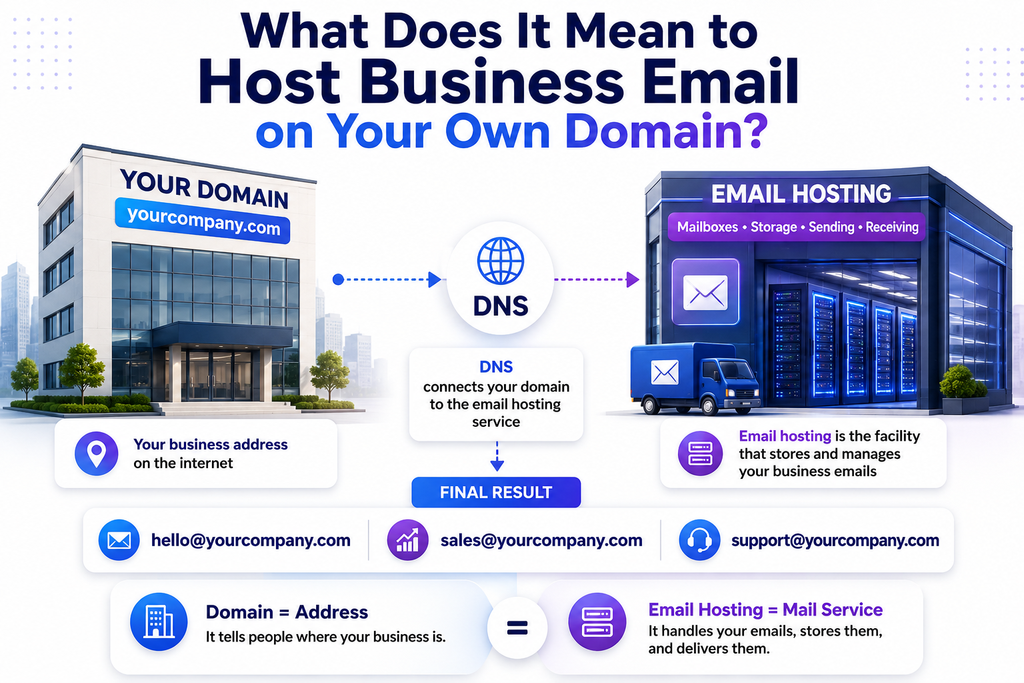
The domain itself does not automatically provide email hosting.
Your domain registrar manages ownership and registration of the domain, while an email hosting provider manages the infrastructure required to send, receive, store, and access email.
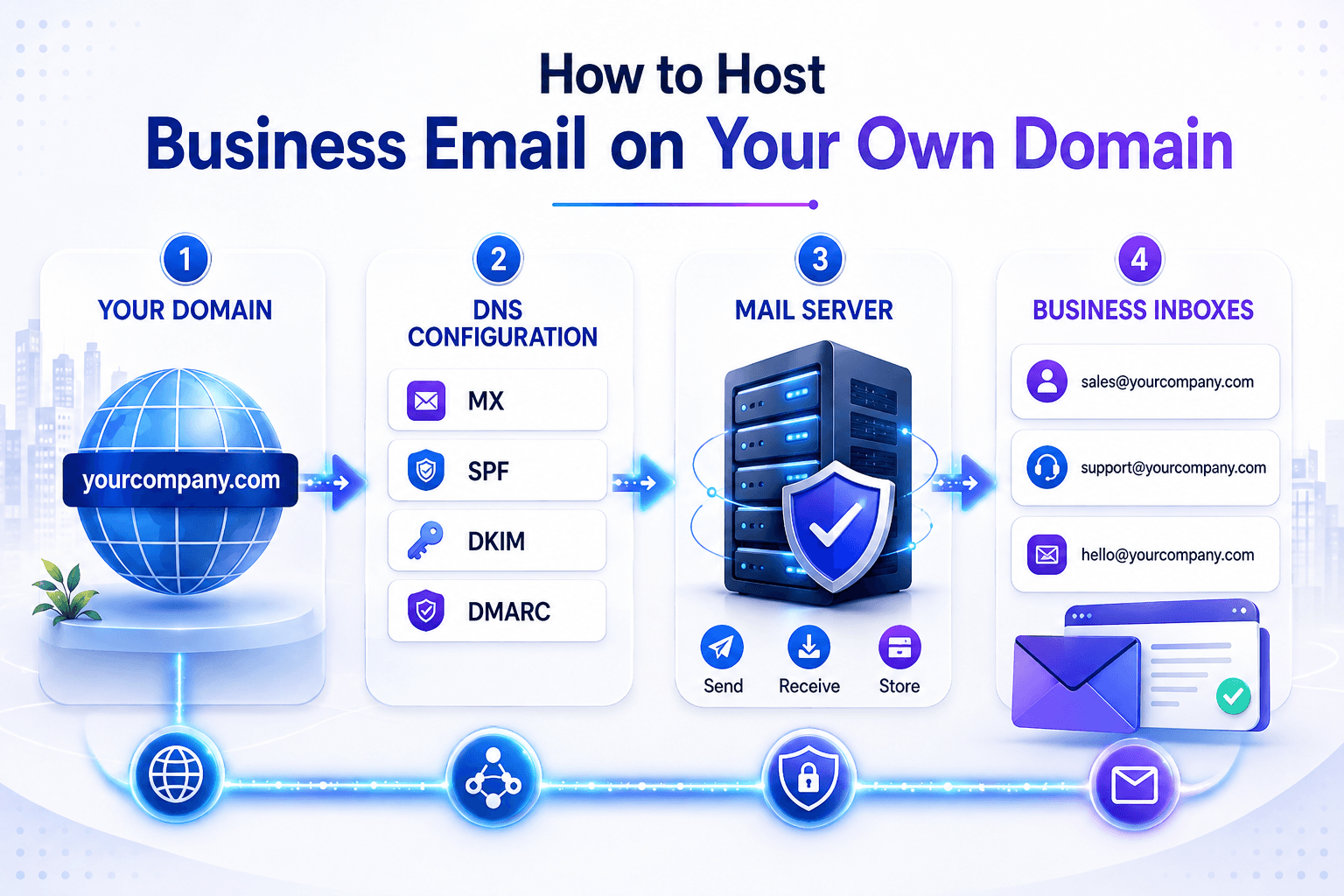
Think of the setup as three connected components:
Domain → DNS → Email Hosting
The domain identifies your business. DNS tells the internet where services associated with that domain are located. Email hosting provides the actual mailboxes and mail servers.
Why Should a Business Use Its Own Domain for Email?
Using a custom domain gives businesses several practical advantages.
1. It strengthens your professional identity
Compare:
with:
The second address communicates that the email belongs to an established business domain.
This matters when communicating with:
- Customers
- Suppliers
- Partners
- Prospects
- Financial institutions
- Vendors
- Employees
Your domain becomes part of your company’s digital identity.
2. It gives you more control
With domain-based business email, you can create and manage addresses according to your company’s structure.
For example:
can be used for customer support while:
can handle sales inquiries.
You can also create individual employee accounts and remove access when someone leaves the organization.
3. It separates business communication from personal accounts
Using personal email accounts for business communication can become difficult as a company grows.
Employees may leave, passwords may be forgotten, and important customer conversations can become tied to individual accounts.
A centralized business email system gives the organization better control over accounts and access.
4. It supports a consistent customer experience
Customers expect businesses to communicate from recognizable addresses.
A structured email system can make communication easier to organize:
- Sales
- Support
- Billing
- HR
- Management
- General inquiries
This becomes particularly useful as the business grows.
What Do You Need Before Hosting Business Email?
Before configuring business email, you need a few basic components.
1. A registered domain
You need a domain such as:
yourbusiness.com
If you already have a website, you probably already own a domain.
You do not need to purchase another domain simply to create business email.
2. An email hosting service
The domain provides the address, but an email hosting service provides the infrastructure behind the mailbox.
Depending on the provider, this may include:
- Mailboxes
- Storage
- Webmail
- SMTP access
- IMAP access
- Spam filtering
- Security controls
- Domain management
- Email forwarding
- Administrative tools
3. Access to your DNS settings
You will need access to the DNS management area for your domain.
This may be provided by your:
- Domain registrar
- DNS provider
- Hosting provider
- Cloud platform
You will typically add or modify records such as MX, SPF, DKIM, and DMARC.
4. A list of the addresses you need
Before setup, decide which mailboxes your business actually needs.
For example:
| Purpose | Example |
|---|---|
| General inquiries | [email protected] |
| Sales | [email protected] |
| Support | [email protected] |
| Billing | [email protected] |
| Employee | [email protected] |
Planning this in advance avoids unnecessary account changes later.
How to Host Business Email on Your Own Domain
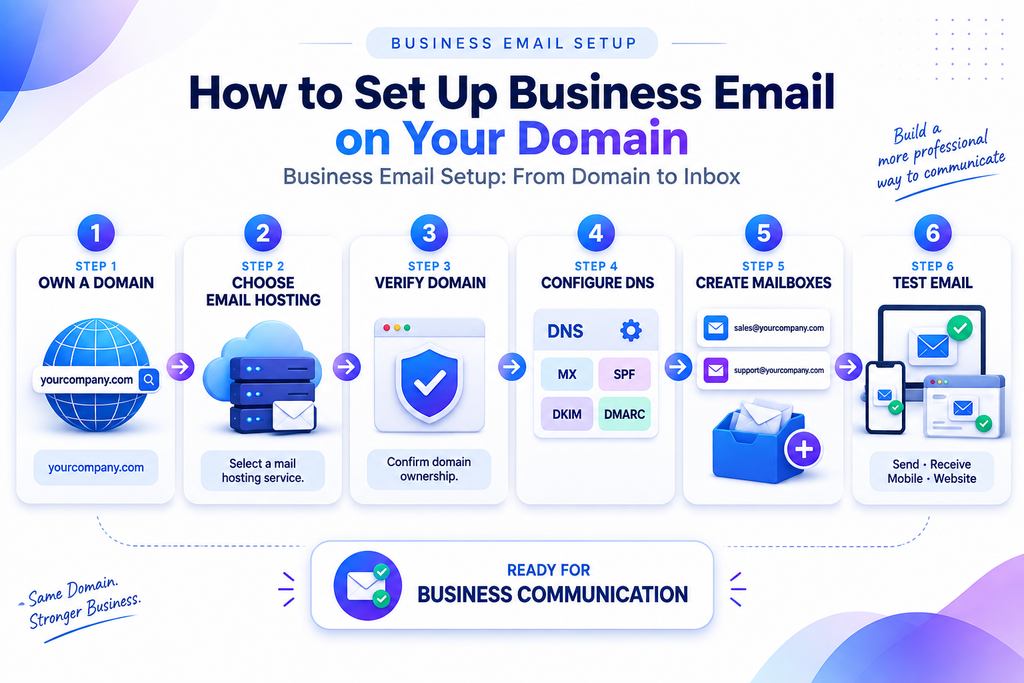
Once the prerequisites are ready, the setup generally follows a straightforward sequence.
Step 1: Choose Your Email Hosting Provider
The first decision is where your business email will be hosted.
Do not choose a provider based only on mailbox price.
Consider:
- Mailbox storage
- Number of users
- Reliability
- Spam protection
- Security features
- Webmail availability
- IMAP support
- SMTP support
- Email forwarding
- Administrative controls
- Backup policies
- Migration options
- Domain support
- Customer support
For businesses evaluating dedicated email hosting, BulkMX can be considered as part of the research process.
The right choice depends on your company’s size, technical requirements, budget, and expected email volume.
Step 2: Add Your Domain to the Email Hosting Service
After choosing a provider, you generally add your existing domain to the email platform.
For example:
examplebusiness.com
The provider may ask you to verify that you control the domain.
This verification step prevents unauthorized users from configuring email for a domain they do not own.
Depending on the provider, verification may involve adding a DNS record containing a unique verification value.
Once the domain is verified, you can proceed with the mail configuration.
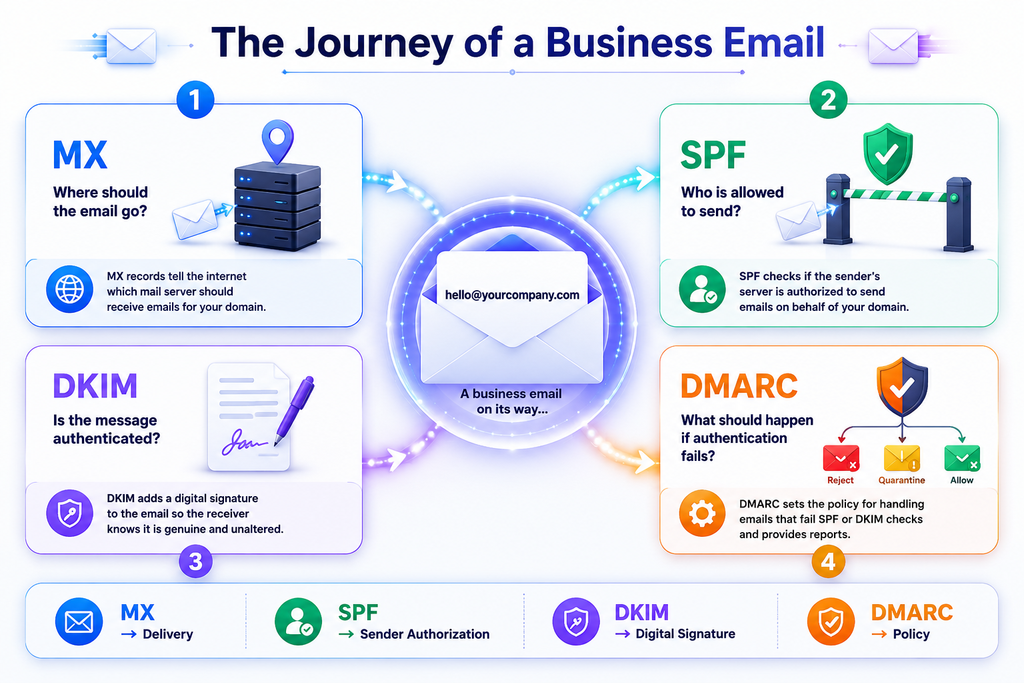
Step 3: Configure the MX Records
MX stands for Mail Exchange.
MX records tell other mail servers where email for your domain should be delivered.
For example, when someone sends an email to:
the sender’s mail system needs to determine which mail server is responsible for receiving messages for examplebusiness.com.
It checks the domain’s MX records.
This is why MX configuration is one of the most important parts of business email setup.
Important consideration
Your website’s DNS records and your email records serve different purposes.
You can have:
- Website hosted on one server
- Email hosted on another service
- DNS managed somewhere else
These services can work together as long as the DNS records are configured correctly.
Do not delete unrelated DNS records simply because you are configuring email.
Step 4: Configure SPF
SPF stands for Sender Policy Framework.
SPF helps identify which servers are authorized to send email on behalf of your domain.
Without proper sender authentication, receiving systems may have less confidence that a message claiming to come from your domain is legitimate.
Your email provider will normally give you the SPF value that should be added to your DNS configuration.
A typical SPF record is stored as a TXT record.
For example, a provider might give you a record conceptually similar to:
v=spf1 include:mail-provider.example ~all
The exact value depends on your email provider.
Do not copy an SPF record from another company. Use the value supplied by your actual provider.
Step 5: Configure DKIM
DKIM stands for DomainKeys Identified Mail.
DKIM adds a cryptographic signature to outgoing email.
The receiving mail system can use the public key published in DNS to help verify that the message was authorized by the domain’s email infrastructure and that the signed content has not been improperly modified.
This is particularly important for businesses that send customer communications, notifications, newsletters, or other legitimate business messages.
Your email provider will normally generate the necessary DKIM configuration.
You will then publish the required DNS record for your domain.
Step 6: Configure DMARC
DMARC stands for Domain-based Message Authentication, Reporting, and Conformance.
DMARC works with SPF and DKIM to provide a policy for handling messages that fail authentication checks.
A DMARC policy can help domain owners gain visibility into email authentication activity and establish instructions for handling suspicious messages.
For businesses, it is useful because someone could potentially attempt to impersonate your domain in fraudulent emails.
A basic DMARC record is published as a DNS TXT record under:
_dmarc.yourdomain.com
However, businesses should avoid blindly applying an aggressive DMARC policy without first understanding their legitimate email-sending sources.
If your company sends email through multiple services, those services need to be considered before tightening the policy.
Step 7: Create Your Business Mailboxes
After domain and DNS configuration, create the actual mailboxes.
For example:
Customer-facing addresses
Internal addresses
Individual accounts
Avoid creating unnecessary mailboxes.
If an address only needs to receive messages and forward them to another mailbox, an alias or forwarding address may be more appropriate than creating another paid mailbox.
SMTP, IMAP, POP3, and Webmail: What’s the Difference?
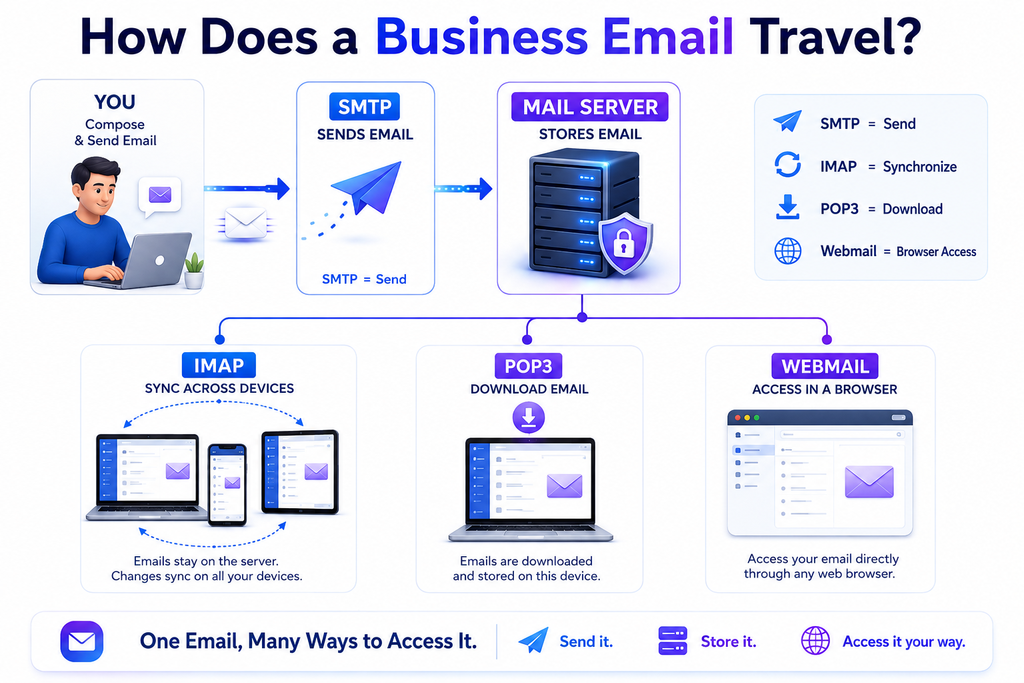
These terms frequently cause confusion when setting up business email.
Understanding their roles makes configuration much easier.
SMTP: Sending Email
SMTP stands for Simple Mail Transfer Protocol.
It is primarily used for sending outgoing email.
When you click “Send,” your email application uses SMTP to submit the message to the appropriate mail server.
SMTP is therefore associated mainly with outgoing email.
IMAP: Accessing Your Mailbox
IMAP stands for Internet Message Access Protocol.
It allows email applications to access messages stored on the mail server.
For example, you might use the same business mailbox on:
- Desktop
- Laptop
- Smartphone
- Tablet
- Webmail
IMAP helps keep mailbox activity synchronized across devices.
If you read a message on your phone, the read status can generally be reflected when you later open the same account on your laptop.
POP3: Downloading Email
POP3 is another protocol for retrieving email.
It is generally more download-oriented than IMAP.
For modern businesses using multiple devices, IMAP is often more convenient because centralized mailbox synchronization is important.
However, whether POP3 is appropriate depends on the organization’s workflow and the features supported by the email provider.
Webmail: Accessing Email Through a Browser
Webmail allows users to access their mailbox through a web browser.
Instead of configuring a desktop application, a user can open the provider’s webmail interface and sign in.
This can be particularly convenient for employees who work across different computers.
Don’t Forget DNS When Setting Up Business Email
DNS is one of the most important parts of domain-based email.
DNS translates domain-related information into records that internet services can use.
For business email, you may encounter:
- MX records
- TXT records
- CNAME records
- A records
- DKIM records
- SPF records
- DMARC records
Not every record performs the same function.
For example:
MX: Determines where incoming email should be delivered.
SPF: Helps identify authorized sending sources.
DKIM: Helps authenticate outgoing messages using cryptographic signatures.
DMARC: Defines policy and reporting around email authentication.
A small DNS mistake can cause major email problems, so changes should be made carefully.
How to Improve Business Email Deliverability
Setting up a mailbox does not automatically guarantee that every message will reach the recipient’s inbox.
Email deliverability depends on several factors.
Authenticate your domain
Proper SPF, DKIM, and DMARC configuration can improve the authentication signals associated with your domain.
Google provides guidance for email authentication and sender requirements through its Google Email Sender Guidelines.
These requirements and recommendations can change, so businesses that send significant volumes of email should periodically review current provider guidance.
Keep your sending practices legitimate
Avoid purchasing email lists or sending unsolicited bulk messages.
High complaint rates can damage the reputation of a sending domain or infrastructure.
Keep business email separate from marketing infrastructure when appropriate
Transactional email, employee communication, customer support, and marketing campaigns can have different requirements.
A growing organization may benefit from designing its email architecture around these different use cases instead of sending everything through one mailbox or server.
How Secure Should Business Email Be?
Email security should not be treated as an optional add-on.
Business email accounts can contain:
- Customer information
- Contracts
- Invoices
- Password-reset messages
- Financial information
- Internal documents
- Login credentials
- Business plans
A compromised mailbox can therefore create consequences far beyond one stolen password.
Use strong passwords
Each mailbox should have a unique, strong password.
Avoid sharing passwords between employees.
Enable multi-factor authentication when available
MFA adds another authentication layer beyond the password.
If the email provider supports it, enable MFA for administrative and user accounts where appropriate.
Protect administrator accounts
The administrator account controlling your email domain deserves special attention.
A compromised administrator account can potentially affect multiple mailboxes and domain settings.
Review inactive accounts
When an employee leaves, remove or disable access according to your company’s offboarding process.
Do not leave unused accounts active indefinitely.
For businesses also reviewing their broader website and application infrastructure, technical development and security considerations can be addressed alongside the email environment. Technobot System’s technology services can be relevant when email is part of a larger business technology project.
Common Mistakes When Hosting Email on Your Domain
Even experienced website owners can run into problems during email configuration.
Mistake 1: Changing MX records incorrectly
If MX records point to the wrong mail server, incoming messages may stop arriving.
Always confirm the exact records supplied by your email provider.
Mistake 2: Creating multiple SPF records
A domain generally should have a single consolidated SPF policy rather than several independent SPF TXT records.
If multiple services send email for your domain, their authorized sources should be incorporated into the appropriate SPF configuration.
Mistake 3: Forgetting about third-party email services
Your business may use multiple systems that send email.
Examples include:
- CRM software
- Website contact forms
- Accounting platforms
- Marketing platforms
- Support systems
- Ecommerce applications
These systems should be considered when designing your email authentication configuration.
Mistake 4: Treating website hosting and email hosting as the same thing
Your website and email do not have to use the same server.
Moving a website does not necessarily mean your email should move too.
Understanding this distinction can prevent accidental email outages during website migrations.
Mistake 5: Ignoring security after setup
Getting email working is only the first stage.
Businesses should also establish procedures for:
- Password management
- MFA
- Employee onboarding
- Employee offboarding
- Suspicious email reporting
- Account recovery
- Administrator access
- DNS changes
How to Test Your Business Email After Setup
Once configuration is complete, do not assume everything is working correctly.
Perform several tests.
Test incoming email
Send an email from an external account to:
Confirm that the message arrives.
Test outgoing email
Send a message from your business mailbox to an external account.
Confirm that it arrives correctly.
Test multiple addresses
If you created sales, support, and billing addresses, test each one.
Test different devices
If your team uses multiple devices, verify mailbox synchronization.
Check authentication
Review whether SPF, DKIM, and DMARC are configured correctly.
Test your website forms
If your website sends contact-form notifications, verify that those messages still arrive after the email migration or DNS changes.
This last test is easy to overlook.
For example, a website might successfully receive a customer’s inquiry but fail to send the notification to the company’s support mailbox because the website’s outgoing mail configuration was not updated.
What If Your Website and Email Are Hosted Separately?
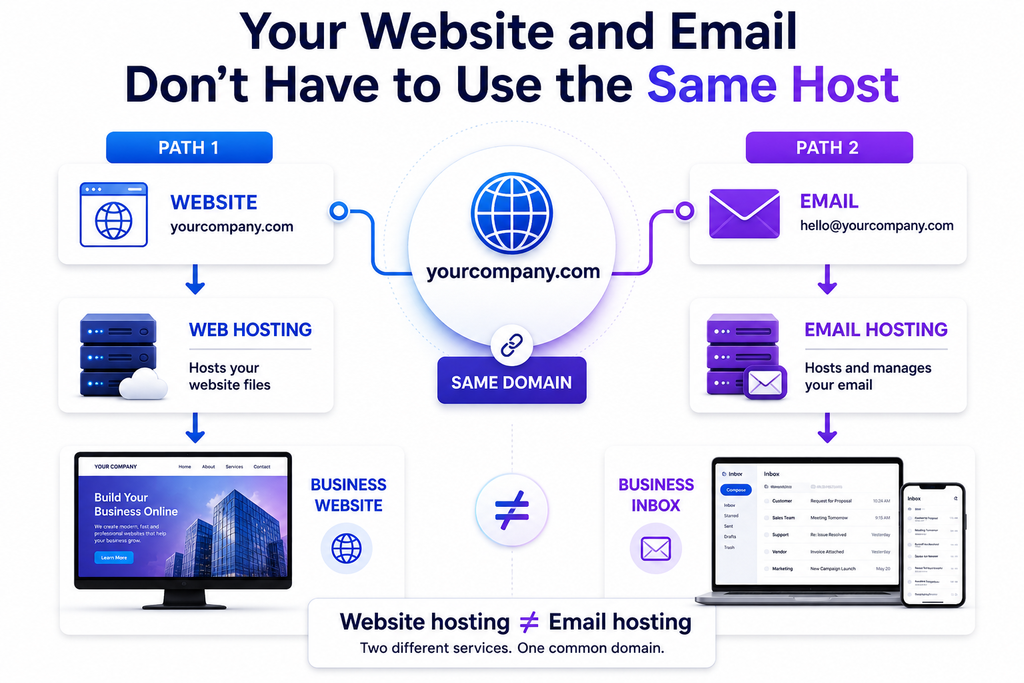
This is completely normal.
For example:
Domain: Your registrar
Website: Web hosting provider
Email: Mail hosting provider
DNS: DNS management provider
These services can operate independently.
The important part is that the DNS records correctly connect each service to the domain.
This flexibility can be useful for businesses that want to use a specialized provider for email while keeping their existing website hosting unchanged.
If your website is part of a larger web application, the separation can become even more useful because development, hosting, DNS, and email can be managed according to their individual technical requirements.
When Should a Business Consider Professional Help?
A basic business email setup is manageable for many small organizations.
However, professional technical assistance can become useful when:
- You have many mailboxes
- You are migrating from another provider
- Your domain has complex DNS records
- Multiple systems send email
- You operate several domains
- Email authentication is complicated
- Your website sends transactional email
- Employees need centralized account management
- You are experiencing deliverability problems
- Your company cannot afford extended email downtime
The goal is not simply to create an email address.
The goal is to create an email system that continues working reliably as the business grows.
A Simple Business Email Setup Checklist
Before considering your setup complete, verify the following:
- Your domain is registered and accessible.
- Your email hosting provider is selected.
- Domain ownership has been verified.
- Correct MX records are configured.
- SPF is configured correctly.
- DKIM is configured correctly.
- DMARC has been considered and configured appropriately.
- Required mailboxes have been created.
- Strong passwords are being used.
- MFA is enabled where available.
- Incoming email has been tested.
- Outgoing email has been tested.
- Website contact forms have been tested.
- Mobile and desktop access has been tested.
- Former employee accounts are removed or disabled.
- Administrative access is protected.
- Your organization knows how to report suspicious messages.
If these areas are covered, you have a much stronger foundation for professional domain-based email.
Frequently Asked Questions
Can I host business email on the same domain as my website?
Yes. Your website and email can use the same domain while being hosted by different providers.
For example, examplebusiness.com can point its website records to one hosting provider while its MX records point to an email provider.
Do I need a separate domain for business email?
No. If you already own a business domain, you can generally use that same domain for business email.
What is the difference between a domain and email hosting?
A domain is your business’s internet address, such as examplebusiness.com.
Email hosting provides the mailboxes and infrastructure used to send, receive, and store email for that domain.
Are MX records required for receiving email?
Yes. MX records are used to identify the mail servers responsible for receiving email for a domain.
Should I use SPF, DKIM, and DMARC?
Businesses using domain-based email should understand and properly configure email authentication mechanisms such as SPF, DKIM, and DMARC. The exact configuration depends on how the organization sends email.
Can I move my email provider without moving my website?
Yes. Email hosting and website hosting can be moved independently as long as the domain’s DNS configuration is handled correctly.
Can I use business email on my phone?
Yes. Depending on the provider, you can normally use webmail or configure the account through a compatible mobile email application using the provider’s supported protocols and settings.
Conclusion
Learning how to host business email on your own domain becomes much easier once you understand the relationship between your domain, DNS, and email hosting provider.
The basic process is straightforward:
Choose an email provider → verify your domain → configure MX records → configure SPF/DKIM/DMARC → create mailboxes → test everything.
The technical details matter, particularly when configuring DNS and email authentication. A single incorrect record can interrupt incoming mail, while incomplete authentication can create deliverability and security concerns.
For a small business, starting with a few well-organized mailboxes and a properly configured domain is often enough. As the company grows, you can introduce stronger access controls, additional security measures, more structured account management, and integrations with websites or business applications.
If email is being developed as part of a broader digital infrastructure project, it also makes sense to review how your website, applications, DNS, and communication systems work together. Businesses exploring broader technical requirements can evaluate relevant MailForge resources alongside their email hosting plans.
The most important thing is not simply having an address such as [email protected]. It is building an email setup that is reliable, secure, properly authenticated, and easy for your business to manage as it grows.
Tags
Share this article
About the Author
Experienced IT professional specializing in enterprise solutions and modern technology implementations.
Related Articles


Stay Updated
Get the latest IT insights delivered to your inbox.